sdr

Click TO See Android Tricks Click To See Facebook Tricks Windows 8 Launchs

ads

Showing posts with label PC tricks. Show all posts

Hide Hard Drive in Windows XP and Windows Vista

Windows Tips

For example there are Drive C: and Drive D: in your computer, and for some reason you don’t want other people to see Drive D : when open the windows Explorer because its contain your personal data.

It is possible to hide a hard drive letter in windows operating system. However, this will not prevent you from access files from it manually for example directly to typing "D:" . but I thinks this tips still useful because other people doesn’t know you have drive D in your computer :)
Follow the instruction below to hide Hard Drive letter in windows operating system:


Hide Drive letter in Microsoft Window XP

1. Go to Start->Run and type “regedit
2. Browse to the following registry :
HKEY_CURRENT_USER\Software\Microsoft\Windows\Curre ntVersion\Policies\Explorer
3. Then, right click on the white space in the right hand side and select New -> DWORD Value Type “NoDrives


4. Double click on "NoDrives" to enter a Decimal value. This value depends on the drives you wish to hide. Click OK once you have entered this number.


For example,
- To hide drive D enter a decimal value 8.
- To hide drive E enter a decimal value 16
- To hide both drives enter decimal value 24 ( decimal value 24 come from 8 +16)

Below is Value to hide the drive:
A = 1
B = 2
C = 4
D = 8
E = 16
F = 32
G = 64
H = 128
I = 256
J = 512
K = 1024
L = 2048
M = 4096
N = 8192
O = 16384
P = 32768
Q = 65536
R = 131072
S = 262144
T = 524288
U = 1048576
V = 2097152
W = 4194304
X = 8388608
Y =16777216
Z = 33554432
All drives = 67108863

Once you restart your computer, the selected drives should be hidden. If you wish to remove the hidden drives, browse to the NoDrives registry value and enter the value 0 or if you want to make a simple just delete it.


Hide Drive letter in Microsoft Window Vista

1. Press WINDOWS KEY + R and type “regedit
2. Browse to the following registry :
HKEY_CURRENT_USER\Software\Microsoft\Windows\Curre ntVersion\Policies\Explorer
3. Then, right click on the white space in the right hand side and select New > DWORD (32-bit) Value Type “NoDrives


4. Double click on "NoDrives" to enter a Decimal value. This value depends on the drives you wish to hide. Click OK once you have entered this number. (please see the value when I write hide drive in windows XP above)

Once you restart your computer, the selected drives should be hidden. If you wish to remove the hidden drives, browse to the NoDrives registry value and enter the value 0 or if you want to make a simple just delete it.


Note : Before modify the registry, its recommended to backup your registry first
READ MORE - Hide Hard Drive in Windows XP and Windows Vista

Increase Virtual RAM - To Make Your System Faster

https://blogger.googleusercontent.com/img/b/R29vZ2xl/AVvXsEgGco1UCLN15s1AIjlbjYEzgkNxO_CU_Y2aXdnYD68YPylZjdfpf-DN_I4BWXOVchH1pyagFVWcPoZinQ2_DylbQpjwOEOWNYVC5C3Aoy_rj0pzUWcUAp8MqhF6NP284641tYx8KYD8Xot1/s1600/windows-virtual-memory.jpg

Increase Virtual RAM - To Make Your System Faster

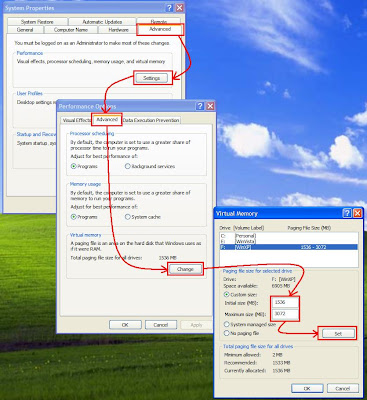
1) Hold down the 'Windows' Key and Press the 'Pause/Break' button at the top right of your keyboard.
Another way is Right-Clicking 'My Computer' and then Select 'Properties'.

http://iamkirtan.blogspot.in/  

 2) Click on the 'Advanced' tab.

(For Win 7 click on Advance System Setting)

3)
Under 'Performance', click 'Settings'.

4)
Then click the 'Advanced' tab on the button that pops up.

5)
Under 'Virtual Memory' at the bottom, click 'Change'.

6)
Click the 'Custom Size' button.

7)
For the initial size (depending on your HD space), type in anywhere from 1000-1500 , and for the Maximum size type in anywhere from 2000-2500.
http://latestfree4u.blogspot.in/
 

8) Click 'Set', and then exit out of all of the windows.

9)
Finally, Restart your computer.

10)
You now have a faster computer and 1-2GB of Virtual RAM..! 

READ MORE - Increase Virtual RAM - To Make Your System Faster

Boot Or Start Computer Faster

1. Press start > Run then type msconfig and press enter.


Go to the startup tab. Here you will see a list of startup items. These are all the programs that automatically start when you boot your PC. It is these that slow down the boot up process.


  So uncheck all the unwanted items like ms-office, messengers other utilities that u may not need at startup). Don't uncheck your antivirus software.


Restart your Pc to and see for yourself, your pc will now boot faster....  

    
2. A great new feature in Microsoft Windows XP is the ability to do a boot defragment.

 This places all boot files next to each other on the disk to allow for faster booting. By default this option is enabled, but on some systems it is not, so below is the information on how to turn it on:


Go to Start Menu and Click Run

Type in regedit then click ok

Find "HKEY_LOCAL_MACHINE\SOFTWARE\Microsoft\Dfrg\BootOpt imizeFunction"

Select "Enable" from the list on the right

Right on it and select "Modify"

Change the value to Y .

Reboot your Pc and see the change yourself.
READ MORE - Boot Or Start Computer Faster

Add Background Wallpaper On Your Pendrive.


Just Copy the below code to notepad,then save it as “desktop.ini”

[.ShellClassInfo]
IconFile=%SystemRoot%\system32\SHELL32.dll
IconIndex=127
ConfirmFileOp=0

[{BE098140-A513-11D0-A3A4-00C04FD706EC}]
Attributes=1
IconArea_Image=“YourPictureName.jpg”
IconArea_Text=”0xFFFFFF”
VeBRA sources – don’t delete the tag above, it’s there for XXXXX purposes -
[ExtShellFolderViews]
{BE098140-A513-11D0-A3A4-00C04FD706EC}={BE098140-A513-11D0-A3A4-00C04FD706EC}
{5984FFE0-28D4-11CF-AE66-08002B2E1262}={5984FFE0-28D4-11CF-AE66-08002B2E1262}

[{5984FFE0-28D4-11CF-AE66-08002B2E1262}]
PersistMoniker=Folder.htt
PersistMonikerPreview=%WebDir%\folder.bmp

1. Where “YourPictureName.jpg” is, delete that and replace with your picture name for example “superman.gif”
2. Put “desktop.ini” and your chosen picture in yourUSB Drive then Hidden it.
3. Refresh and Enjoy with your new background.

READ MORE - Add Background Wallpaper On Your Pendrive.

How to disable the right click functionality on the desktop

Follow the given steps to disable the right click functionality on desktop:
To use this feature, you will need to be logged into your computer with administrative rights.
Click Start button and type regedit in Run option then press Enter for next.

Here locate the location to:
HKEY_CURRENT_USERSoftwareMicrosoftWindowsCurrentVersionPoliciesExplorer

Here in right side panel, right click to create a new DWORD value with the name NoViewContextMenu (it is case sensitive), then assign number 1 in value data box.

Now close the registry editor and restart your computer after any changes to go into effect.

But next time, if you want to enable right click functionality on desktop then simply change the value of data box or delete the NoViewContextMenu DWORD item.
READ MORE - How to disable the right click functionality on the desktop

How to disable/enable USB Port in Windows 7 ?


Hello All my Friends , I hope you Are visiting  my Website Daily For New  Tips , many people ask how to How To Disable / Enable Access Of USB Port  in school ,clg, sybercafe etc.   so Today I am showing  here how to How To Disable / Enable Access Of USB Port.  Just Fallow Simple  Steps And got Disable / Enable Access Of USB Port.

1)   windows Key

 
2) Type regedit  and press enter 


3) It will open the Registry Editor " click yes "

4) Find This HKEY_LOCAL_MACHINE 


5) Double Click on Defult Button 
After opening Registry edit browse the following path in reght side bar of registry editor
The Path to go: “HKEY_LOCAL_MACHINESYSTEMCurrentControlSetServicesUSBSTOR”
Step4: Then right click the registry “Start” which is rectangled in red color in the below screenshot of registry editor


6) then Right Click “Start” and Click modify
  • if u want To enable USB ports: change the value from “4? to “3?
  • if u want To disable USB ports: change the Value for “3? to “4?
READ MORE - How to disable/enable USB Port in Windows 7 ?

Create a New Partition on a Windows 7 Hard Disk

The Windows 7 Disk Management tool provides a simple interface for managing partitions and volumes.

Here’s an easy way to create a new partition on your disk.


  1. Open the Disk Management console by typing diskmgmt.msc at an elevated command prompt.

    partition1.jpg

  2. In Disk Management’s Graphical view, right-click an unallocated or free area, and then click New Simple Volume. This starts the New Simple Volume Wizard. (Note: If you need to create unallocated space, see the Tip Easily Shrink a Volume on a Windows 7 Disk for information on how to do this.)

    partition2.jpg

  3. Read the Welcome page and then click Next.
  4. The Specify Volume Size page specifies the minimum and maximum size for the volume in megabytes and lets you size the volume within these limits. Size the partition in megabytes using the Simple Volume Size field and then click Next.

    partition4.jpg

  5. On the Assign Drive Letter Or Path page, specify whether you want to assign a drive letter or path and then click Next. The available options are as follows:

    partition5.jpg


    Assign The Following Drive Letter
    Select an available drive letter in the selection list provided. By default, Windows 7 selects the lowest available drive letter and excludes reserved drive letters as well as those assigned to local disks or network drives.
    Mount In The Following Empty NTFS Folder
    Choose this option to mount the partition in an empty NTFS folder. You must then type the path to an existing folder or click Browse to search for or create a folder to use.
    Do Not Assign A Drive Letter Or Drive Path
    Choose this option if you want to create the partition without assigning a drive letter or path. Later, if you want the partition to be available for storage, you can assign a drive letter or path at that time.
  6. Use the Format Partition page to determine whether and how the volume should be formatted. If you want to format the volume, choose Format This Volume With The Following Settings, and then configure the following options:

    partition6.jpg


    File System
    Sets the file system type as FAT, FAT32, or NTFS. NTFS is selected by default in most cases. If you create a file system as FAT or FAT32, you can later convert it to NTFS by using the Convert utility. You can’t, however, convert NTFS partitions to FAT or FAT32.
    Allocation Unit Size
    Sets the cluster size for the file system. This is the basic unit in which disk space is allocated. The default allocation unit size is based on the size of the volume and, by default, is set dynamically prior to formatting. To override this feature, you can set the allocation unit size to a specific value. If you use many small files, you might want to use a smaller cluster size, such as 512 or 1,024 bytes. With these settings, small files use less disk space.
    Volume Label
    Sets a text label for the partition. This label is the partition’s volume name and by default is set to New Volume. You can change the volume label at any time by right-clicking the volume in Windows Explorer, choosing Properties, and typing a new value in the Label field provided on the General tab.
    Perform A Quick Format
    Tells Windows 7 to format without checking the partition for errors. With large partitions, this option can save you a few minutes. However, it’s usually better to check for errors, which enables Disk Management to mark bad sectors on the disk and lock them out.
    Enable File And Folder Compression
    Turns on compression for the disk. Built-in compression is available only for NTFS. Under NTFS, compression is transparent to users and compressed files can be accessed just like regular files. If you select this option, files and directories on this drive are compressed automatically.
  7. Click Next, confirm your options, and then click Finish.

    partition7.jpg
The Windows 7 Disk Management tool will now show the space configured as a new partition.


partition8.jpg
READ MORE - Create a New Partition on a Windows 7 Hard Disk

How to run Turbo C++ in Windows 7 in full Screen

  1. Create a new folder in your C:  and rename it to ‘turbo’ [or anyone you feel like]. Reason for doing it will be mentioned as you read.
  2. Now, run the installed setup file [TC3setup.exe] and give the extraction position as
  3. Now, download the DosBox setup from here
  4. Install DosBox in your system.
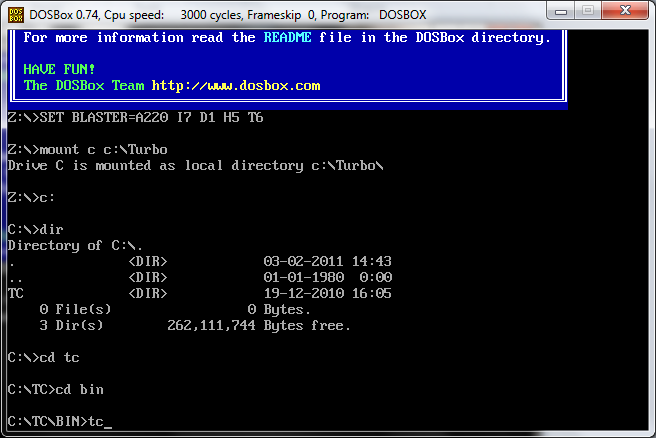
  5. Now run DosBox. A command prompt type window will appear. Now note that there is a difference between the command prompt our system is equipped with and this version of command prompt. This emulator is 32-bit in contrary to native 16-bit prompt, therefore, allowing you to run it in full screen mode.
  6. In this window, we now need to mount the folder via this command:   This tells about the reason behind creating another directory while extracting TC3setup.exe. Mounting works relative to a folder, here Turbo.
  7. Work is almost done. Now, type “C:” to mount above mounted drive.
    To list the content of this mounted space, type ‘dir’
  8. Type
    >cd tc
    >cd bin
    to reach within subdirectories for tc.exe
    Now type tc and press Enter.
    Press Alt + Enter to go in Full Screen Mode.
This task may look all so tedious. But, everything can be automated in a single go.
Once you have successfully managed to run it in full screen mode, you can easily automate the process by editing configuration file. You can drop comments below in case of any problem to get through.
To run TC automatically on running DosBox:
Search for “DosBox” in start menu.
Nowclick onDosBox 0.74 Options
A configuration file in Notepad will be opened.
Go till the end of the document and add following lines there:
mount c c:\turbo
c:
cd tc/bin
tc
Save this file and exit from notepad.
Run DosBox again. Voilla! It will take you straight to TuboC++.


READ MORE - How to run Turbo C++ in Windows 7 in full Screen

Top 5 Tricks and Tips to Boot Up Computer Faster


 Here are the Top Tricks and Tips to Boot Up Windows and therefore the Computer Faster.


1) Regular Hard Disk Check Up.


Over the Time Hard Disk gets Degraded not only Physically but also Digitally. So it’s Important to Monitor the Hard Disk's Drive Health. Any Error or Damaged Sector can throw the Software Loading into an Infinite Loop and thus Causing the Long Load Times. So to check the Hard Disk's Drive Health follow these simple steps :

a) Click Start  >>  Computer  >>  Right Click the Partition to be Checked  >>  Properties  >>  Tools.

b) Now Under " Error - Checking ", Click " Check Now ".

c) Now a Pop Window will come and on that Check the both Options i.e. " Automatic Fix File System Errors ", and " Scan For and Attempt Recovery of Bad Sectors ". After this the Error Check would Start and it might take some Time according to the Disk Size.

d) Now Hard Disk Check Up has been Completed.


2) Eliminate Startup Delay.


To get Faster Boot Up Speed, We can cut the Boot Delay to 0. The delay is in place to allow your Startup Processes some Breathing Room during Loading. The Default Delay is 30 seconds and We can Change it to 0 and Eliminate it for Faster Boot Up Times. So to Eliminate the Startup Delay follow given below Steps :

a) Click Start  >>  Run  >>  Type " msconfig " ( Without Quotes )  >> Press Enter.

b) Now the System Configuration Utility Windows will Open.

c) Now Click Boot Tab. In the Boot Menu, Change the Default Setting for the Time Out from 30 any Less Number of Seconds You Want. We Recommend the minimimum of 3 Seconds.

d) Now Startup Delay has been Eliminated.


3) Organize the Hard Disk.


Over the Time, Storage System of the Hard Disk gets DisOrganized. So we need to ReOrganize this Storage System on the Hard Disk. Windows has a Default Utility called Disk Defragmenter that will put the Hard Disk of the System in Order. So to use this Utility follow given Below Steps :

a) Click Start  >>  Computer  >>  Right Click any Disk Drive  >> Properties  >>  Tools.

b) Choose Defragment. Now in the Disk Deframenter Utility, Click Defragment. You have to Defragment each of the Disk Partitions Individually.

c) Now the Organization of Disk has been Completed.


4) Remove Unwanted Startup Programs.


Whenever we Install a New Program, most of them Opts to Load on the Computer Startup. The process of Loading Up these Programs at Startup can reduce the Booting Times. So We need to Reduce these Startup Programs. So to Reduce and Disable the Unwanted Startup Programs follow given below steps :

a) Click  Start  >>  Run  >>  Type " msconfig "  >>  Press Enter.

b) Now the System Configuration Utility will Open.

c) Now Click Startup Tab.

d) Uncheck the Programs that You no Longer Want to Run on the Startup and Click OK.

e) Now Unwanted Startup Programs have been Removed.


5) Remove Unwanted Startup Services.


There are many Windows Services which also requires the Loading Up at Startup and can reduce the Booting Times. So We need to Disable these Startup Services. So to Reduce and Disable the Unwanted Startup Sercvices follow given below steps :

a) Click  Start  >>  Run  >>  Type " msconfig "  >>  Press Enter.

b) Now the System Configuration Utility will Open.

c) Now Click Services Tab.

d) Uncheck the Services that You no Longer Want to Run on the Startup and Click OK.

e) Now Unwanted Startup Services have been Removed.


READ MORE - Top 5 Tricks and Tips to Boot Up Computer Faster

SHUTDOWN PC FROM MOBILE

1. First, you need the batch files to perform the Shutdown, Hibernate etc. You can write them down yourselves or can download them from

2. Extract them to your C:\ drive so the path to the shutdown batch file is C:\sms_functions\shutdown.bat (Important this is a must the path must be exact) or you can modify the rule once you import it to point to the new destination, it's your call.

3. Open up Microsoft Outlook. Make sure that you have already configured it for your email.Now we will need to make it so that Outlook checks your inbox about every minute (1 minute for testing time can be increased if a delayed shutdown is desired). You can do this by going to Tools: Options.

4. Then click the Mail Setup tab, and afterwards, the Send/Receive button.

5. Make sure that the Schedule an automatic send/receive every... box is checked, and set the number of minutes to Now you may close all of these dialog boxes.

6. Now go to Tools: Rules and Alerts... Next click the options button in the upper right hand corner and press the Import Rules button.

7. Now select the shutdown.rwz file that was found in the zip file named sms_functions that you downloaded.

8. Now, when you send a message from your phone to your e-mail address with the subject smsshutdown%%, your computer will shutdown.
READ MORE - SHUTDOWN PC FROM MOBILE

Delete files without moving deleted files to Recycle Bin

Whenever a file is deleted , it moves into recycle bin.But not from the hard disk.So to remove any file from hard disk directly without moving it to Recycle Bin just follow these steps:

>>Go to Start>Run , type gpedit.msc to open group policy editor
>>In group policy editor , expand User Configuration>Administrative Templates>Windows Components and select Windows Explorer


>>On right window pane you can see Setting : Do not move deleted files to recycle bin
>>Double Click it and select Enabled and click Ok
>>That's it now you can delete files in your hard disk without moving it in Recycle Bin


Alternate:You can also delete files from hard disk without placing it in hard disk by selecting file and pressing Shift + Delete keys at a time
READ MORE - Delete files without moving deleted files to Recycle Bin

HOW TO MAKE FOLDER PASSWORD PROTECTED AND INVISIBLE

Do you want to make a password protect folder??
Do you want to make it invisible??
So that it remains unnoticed by the normal users??

Well here is a way to do that. In this section I will show you how to make a password protected folder in Windows XP, Vista without using any additional software. Following is the step by step procedure to create a password protected folder.

STEP-1: Create a new folder (Right-click -> New -> Folder) and give it any name of your choice. For instance you name it as HME.

STEP-2:  Now place all the important files, documents or any other folder in this folder that you want to password protect.

STEP-3: Now Right-click on this folder (HME) and select the option Send To -> Compressed (zipped) Folder.

STEP-4: Now a new compressed zipped folder gets created next to folder (HME) with the same name.

STEP-5: Double-click on this compressed zipped folder and you should see your original folder (HME) there.

STEP-6: Now go to the File menu and select the option Add a password. ie: File -> Add a password

You will get small pop up window here. You can set your desired password. Once the password is set, It will ask for the password every time it is opened. Thus you have now created the password protected folder.

HOW TO MAKE IT INVISIBLE
STEP-1: Right-click on this password protected folder and click on Properties.

STEP-2: At the bottom select the option Hidden and press OK. Now your folder gets invisible.

STEP-3: In order to unhide this folder go to
My Computer – >Tools -> Folder options. Switch to View tab, scroll down and under Hidden files and folders you’ll see the following two options
  • Do not show hidden files and folders
  • Show hidden files and folders
Here you select the second option and press OK. Now the invisible folder becomes visible in it’s location. To access it you need the password. To make it invisible again repeat STEP-1 through STEP-3 and select the first option and click OK.
Now the folder becomes invisible once again.
READ MORE - HOW TO MAKE FOLDER PASSWORD PROTECTED AND INVISIBLE

Make Your Computer Speak When you Log On

It’s a simple trick to amaze your friends.When you Log On infront of them.
Yeah a trick to make your Computer Welcome you on Start Up.


Lets Do It:
Open Notepad
Paste the bellow code in Np


Dim speaks, speech
speaks="Welcome Back, Username"
Set speech=CreateObject("sapi.spvoice")
speech.Speak speaks


Replace Username with your Name
Click Save As and save as type Welcome.vbs
Copy File Welcome.vbs and paste it in bellow address

                                                             Windows-7

C:\Users\Username\AppData\Roaming\Microsoft\Windows\Start Menu\Programs\Startup


*Replace Username with your username and C:\ with your Root Drive
                                                             Windows-Xp

C:\Documents and Settings\All Users\Start Menu\Programs\Startup


Done Log Off and Log In Amazed? .Now Your computer welcomes you
READ MORE - Make Your Computer Speak When you Log On

How To Lock Computer With USB Flash Drive

lock ur own pc with usb flash drive .Guys this tips will not work on all versions on windows including both windows 32 bit and 64 bit.
 so guys follow the steps for do this .. 

1.First you Download predator software .. Click here 

2.Predator software will get launched automatically after completing installation if not you can run it from Start/Programs/Predator

3. Now Insert your Usb. You will get a message to define your new password (This process will not format your pendrive and your pendrive data will not be affected by this at all)


4.  Now Click on Ok and Then Enter your your new password in next dialog box

5. Check that the drive letter displayed under “USB key drive” actually matches your flash drive or choose the correct letter from the dropdown list

6. Finally click on Create Key button and then on OK button


After this the software will automatically exit.Now restart ur program by clicking the icon on desktop.

Predator will take few seconds for initialization. Once the icon in the taskbar turns green then your software has initialized itself.
READ MORE - How To Lock Computer With USB Flash Drive

Run Mobile Java Application On Computer

Method 1- Mpower player

The easiest and coolest free emulator for JAR / J2ME / MIDLET / MIDP on your PC/computer is mpowerplayer.
They even have an online emulator that you can use! It’s just a 1MB download for the emulator/player.

Downloadand Run MPowerPlayer for All OS!

Note: Only MIDP/j2me programs are allowed to run with these programs. Your mobile programs must to be have *.jar extension. For example MIG33.jar , asphalt_3_3d.jar etc. If you don’t see jar extension on your PC, then go to tools > folder options > view. In view tab you will see many options marked or unmarked. Look for the option “hide extensions for known file types”. Unmark it. Then click OK. Now you will able to see your all files extensions.


Method 2- SJ Boy Emulator

So far SJ Boy Emulator is the best too to run your jar softs, games on windows. It a little program designed for windows to run MIDP/CLDC programs easily without any problem.
This is the default window of SJ Boy Emulator which includes an N70 window. You can change this phone from skin toolbar which is located at the top of the window.
Now You are ready to run your Java/J2ME/Jar programs, softwares, games on it! What you need to do, just drag and drop your jar program on the window and then the program will run on the mobile just as real! You can use the mobile keypad to controll the program or game.
For example I am running mig33

DownloadSJ Boy Emulator

USE ANY ONE METHOD
READ MORE - Run Mobile Java Application On Computer

CHANGE YOUR IP ADDRESS ONLINE

 browse the internet. before useing newip now. i looked up my ip details

READ MORE - CHANGE YOUR IP ADDRESS ONLINE